~200
Hotkeys In The Manual
12
You Need Week One
3
Modifier Moods
1
Panic Button
Nobody warns you about the first afternoon.
You install Omarchy, the theme is gorgeous, the tiling is crisp, and then you need to reply to an email. Your right hand slides sideways to grab a mouse that is, technically, right there — and completely useless. You stare at the screen. You know the browser is behind something. You do not know how to get to it. You have been a professional for years and you cannot open a web page.
Then you press Super + W to close the window in your way, except you are in a browser tab you had not saved, and now that is gone too.
I am telling you this up front because every other guide to Omarchy's hotkeys hands you a table of 200 bindings and wishes you luck. That is not a guide, that is a phone book. What you actually need is to know which ones matter this week, which ones matter next month, and why the whole thing is far more learnable than the manual's length suggests.
What's Inside
- Why week one is genuinely awful, and exactly how long it lasts
- The grammar: three modifier moods that predict most of the keymap
- The twelve bindings to learn first, as a cheat sheet you can steal
- Week two and three — the ones that make you faster than you ever were with a mouse
- Where people give up, and the two settings that stop it
- The tmux problem: a second keymap living inside the first
The bad news, stated plainly
You will be slower. Not "briefly adjusting" slower — visibly, embarrassingly slower, in front of colleagues, for about a week.
This is not a failure of the software and it is not a failure of you. It is that roughly thirty percent of what you call "using a computer" is not thought at all. It is reflex, built over decades, and reflexes do not read documentation. Your hand goes to the mouse before your brain finishes forming the intention. Watch yourself do it and you will notice something unsettling: you were never deciding to reach for the mouse. It just happened.
Here is the timeline, as honestly as I can give it:
- Days 1–3. Miserable. You look up the same four bindings twenty times. You reach for the mouse constantly. You will consider going back, and there is no shame in that.
- Days 4–7. The core dozen start firing without a lookup. Still slower than you were, but you can feel the shape of it now.
- Week 2. Roughly break-even. You stop thinking about window management and start thinking about work again.
- Week 3–4. The switch flips. You go back to a normal desktop for something and find yourself pressing
Super + Spaceat a machine that has no idea what you mean, feeling mildly betrayed.
That last stage is the actual payoff, and it is worth being precise about what it is. It is not that keyboard shortcuts are faster than clicking — for a single action, they often are not by much. It is that they cost you nothing. Reaching for a mouse, locating a cursor, finding a target and clicking it is a small interruption to whatever you were holding in your head. Do it four hundred times a day and the interruptions are the job.
The part nobody explains: it's a grammar, not a list
Here is the thing that would have saved me most of that first week.
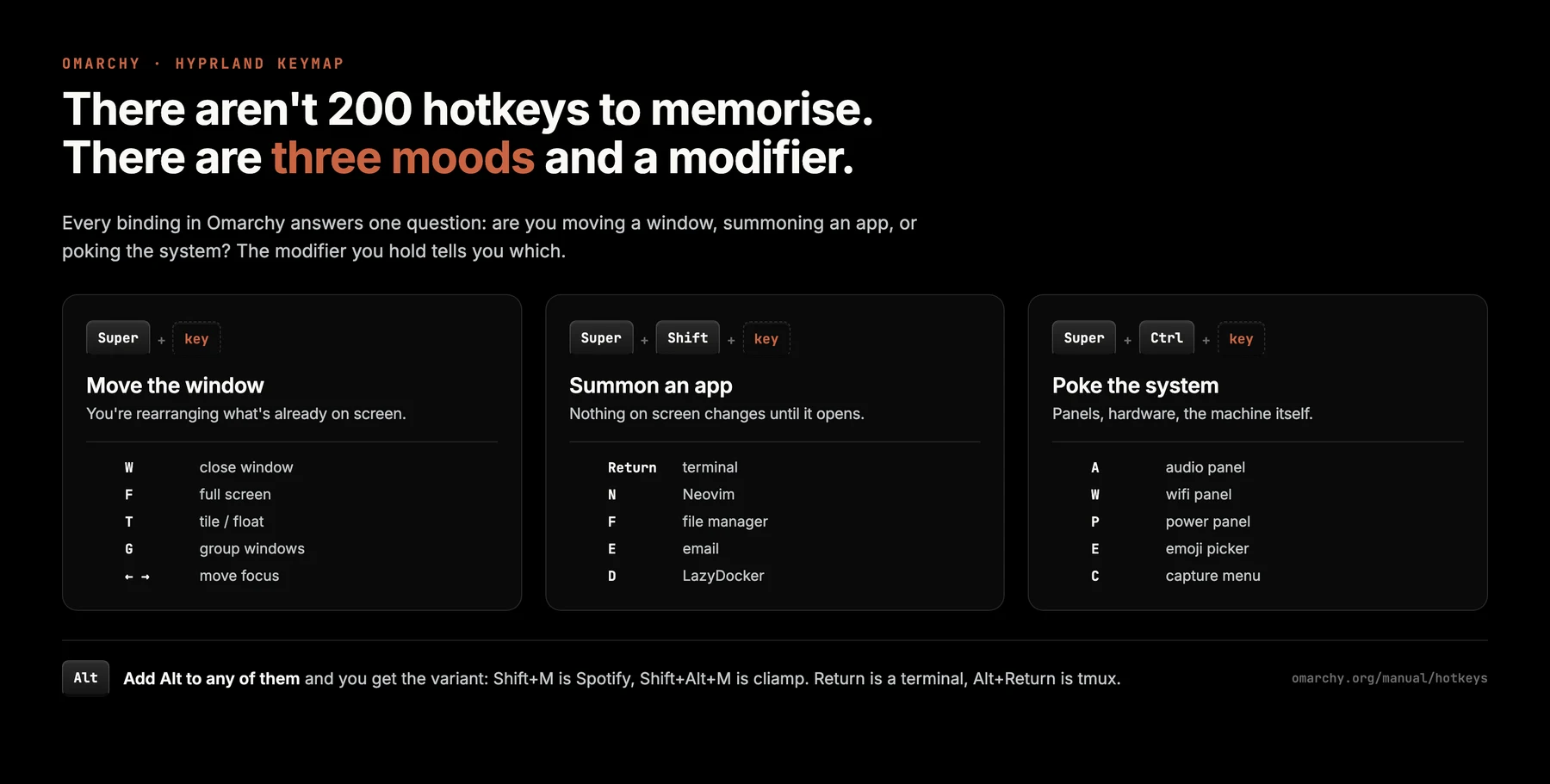
Omarchy's ~200 hotkeys are not 200 independent facts. They are a small set of rules applied consistently, and once you see the rules you stop memorising and start guessing correctly, which is a wildly better way to live.
There are three moods, and the modifier you hold tells you which one you are in.
Super — move the window
Plain Super plus a key acts on what is already on your screen. Nothing new appears; things move.
| Hotkey | Does |
|---|---|
Super + W | Close window |
Super + F | Full screen |
Super + Alt + F | Full width |
Super + T | Toggle tiling / floating |
Super + G | Group windows into a tabbed stack |
Super + Alt + G | Pull a window back out of the group |
Super + Arrows | Move focus |
Super + Shift + Arrows | Swap windows |
Super + 1/2/3/4 | Jump to workspace |
Super + Shift + 1/2/3/4 | Send window to workspace |
Super + Tab | Next workspace |
Super + Ctrl + Tab | Back to the workspace you were just on |
Super + Minus / Equal | Widen / narrow |
Super + S | Show the scratchpad |
Super + Alt + S | Send window to the scratchpad |
Super + Shift — summon an app
Add Shift and you are launching something. Nothing on screen changes until it appears.
| Hotkey | Opens |
|---|---|
Super + Return | Terminal (no Shift — see below) |
Super + Alt + Return | tmux terminal |
Super + Ctrl + Return | Herdr, the agent manager |
Super + Shift + Return | Browser |
Super + Shift + Alt + B | Browser, private window |
Super + Shift + N | Neovim |
Super + Shift + F | File manager |
Super + Shift + Alt + F | File manager in the terminal's current directory |
Super + Shift + E | |
Super + Shift + D | LazyDocker |
Super + Shift + O | Obsidian |
Super + Shift + M | Spotify |
Super + Shift + A | ChatGPT |
Super + Shift + Alt + A | Grok |
Super + Shift + G | Signal |
Super + Shift + / | 1Password |
There is one exception, and it is the exception because it earned it: Super + Return — no Shift — is the terminal. It is the most-pressed key on the machine and DHH gave it the shortest chord. Correct call.
Super + Ctrl — poke the system
Add Ctrl and you are reaching past your work into the machine itself: panels, hardware, settings.
| Hotkey | Opens |
|---|---|
Super + Ctrl + A | Audio panel |
Super + Ctrl + W | Wifi / network panel |
Super + Ctrl + B | Bluetooth panel |
Super + Ctrl + D | Display panel |
Super + Ctrl + P | Power panel |
Super + Ctrl + T | Activity — a live btop |
Super + Ctrl + H | Hardware menu |
Super + Ctrl + E | Emoji picker |
Super + Ctrl + Q | Calculator |
Super + Ctrl + C | Capture menu |
Super + Ctrl + S | Share, via LocalSend |
Super + Ctrl + L | Lock the computer |
Super + Escape | System menu — suspend, restart |
Alt means "the other one"
This is the rule that makes the rest predictable. Adding Alt to any binding gives you its variant.
Super + Shift + M is Spotify; Super + Shift + Alt + M is cliamp. Super + Shift + A is ChatGPT; add Alt and it's Grok. Super + Return is a terminal; Super + Alt + Return is a tmux terminal. Super + Space is the full menu; Super + Alt + Space is just apps.
Four rules. Most of the keymap.
Which leaves the honest caveat: it does not hold everywhere. Super + L toggles the layout while Super + Ctrl + L locks the screen, and the day you mean one and press the other, you will find out. But it holds often enough that "guess and check" becomes a legitimate strategy, and that is what turns 200 bindings from a wall into a slope.
Week one: the twelve
Steal this. Print it if you still own a printer.
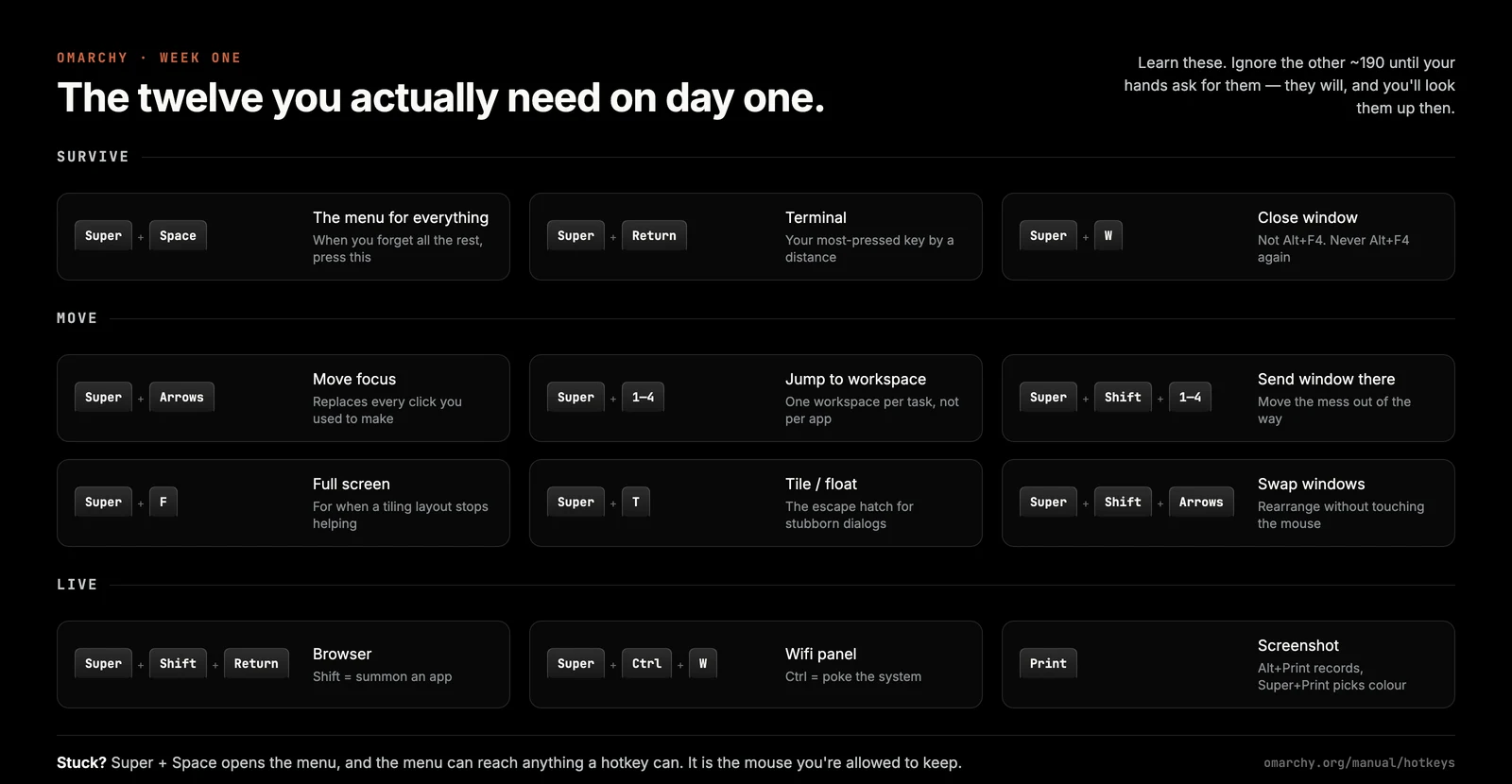
Three of those deserve a note.
Super + Space is the panic button. It opens the Omarchy menu, and the menu can reach anything a hotkey can — apps, settings, themes, capture, the lot. Learn this one binding and every other one becomes optional. It is the mouse you are allowed to keep.
Super + C, Super + X, Super + V are universal copy and paste. They work everywhere, including inside the terminal, and if you have spent years remembering that a terminal needs Ctrl + Shift + C while everything else needs Ctrl + C, this is a bigger quality-of-life win than it looks. Super + Ctrl + V opens clipboard history.
Ctrl + Alt + Del closes all windows. Somebody at 37signals decided that the most famous keyboard chord in computing should keep roughly its original meaning, and I find that genuinely funny every time.
Week two: the ones that make you fast
Once the twelve are automatic, these are what actually put you ahead of where you were with a mouse.
Treat workspaces as tasks, not as apps. This is the single biggest mental shift, and it has nothing to do with hotkeys. Do not put "the browser" on workspace 2. Put "the thing I am working on right now" there — its editor, its terminal, its docs, together. Super + Tab moves to the next workspace, Super + Shift + Tab back, and Super + Ctrl + Tab returns to the last one you were on, which becomes your fastest way to bounce between two pieces of work.
Resize without thinking about pixels. Super + Minus and Super + Equal widen and narrow. Super + Alt with those does it in smaller steps, Super + Ctrl in bigger ones. And Super + Alt + Home saves a window width you like, with Super + Home restoring it — a small thing that quietly removes a fiddly job you used to do with a mouse edge and a steady hand.
Group windows when tiling stops helping. Super + G collapses several windows into one tabbed slot, Super + Alt + Tab cycles them, Super + Alt + G pulls one back out. This is the pressure valve for the moment you have six windows on a 14-inch laptop screen and tiling has become a cruel joke.
Use the scratchpad for the thing you keep interrupting yourself with. Super + Alt + S sends a window to the scratchpad; Super + S summons it back over whatever you are doing. Notes, a chat window, a calculator, one long-running log.
Super + Ctrl + Z zooms the screen. Repeat it for more. When you are pairing, presenting or reading something in a font size designed for people ten years younger, this is the fastest accessibility tool on the machine.
Week three: the show-offs
These are the ones that make people lean over and ask what you just did.
Super + Ctrl + Print Screen extracts text from the screen to your clipboard. Any text. In a screenshot someone pasted into Slack, in a video, in a dialog that will not let you select. This is OCR wired to a keystroke and it is the single most useful binding in the manual that nobody knows exists.
Super + Ctrl + X starts and stops dictation, and F9 is push-to-talk (both need Install > AI > Dictation first). Push-to-talk dictation into a coding agent prompt is a genuinely different way of working — you talk through the problem and edit the transcript rather than typing a paragraph of instructions.
Alt + Shift + D downloads the video on the current page to ~/Videos. No extension, no sketchy website, no negotiation.
Super + Ctrl + R sets a reminder, Super + Ctrl + Alt + R lists them, and Super + Ctrl + Alt + T flashes the time as a notification. Small, and they slowly eat the reasons you had a second app open.
And then there is CapsLock M F. The manual has a table of emoji shortcuts with mnemonic clues — CapsLock M S for a smile, CapsLock M Y for a thumbs up, CapsLock M X for 🎉 with the clue "xellebrate", which is either a typo or the best mnemonic in the document. And tucked in that list, with a one-word clue I will not reproduce here, is a dedicated hotkey for the middle finger emoji. I have no notes. It is exactly the right amount of unserious.
While we are in that table: CapsLock Space Space types an em dash. In 2026, having a dedicated shortcut for the punctuation mark the internet has decided is a sign of machine authorship is a choice with real swagger. Use it anyway. The em dash was here first — and it did nothing wrong.
The mouse is still there, and that is fine
Tiling window managers attract a certain evangelism, and I want to inoculate you against it early, because it is the thing most likely to make you quit.
You are allowed to use the mouse.
Omarchy is not passive-aggressive about this. Super + left mouse drags a window around. Super + right mouse resizes it. Super + scroll wheel moves through workspaces. These exist because the people who built it also use a mouse sometimes.
The goal is not mouse abstinence. It is that the mouse stops being the default — the thing your hand goes to before you have thought about it. Selecting text in a document, dragging something in Figma, clicking a link mid-sentence: the mouse is still the right tool and reaching for it is not a relapse. If you spend week one trying to be a purist, you will spend week two back on your old desktop.
Where people actually give up
Four failure modes, from watching people try this.
They try to learn all of it. The manual is long, the tables are dense, and a certain kind of engineer reads that as an assignment. Do not. Twelve bindings, then add one when your hands ask for it. The asking is the important part — a binding you looked up because you were annoyed sticks; a binding you memorised from a table does not.
Alt+F4 muscle memory. For about three days, some part of you keeps trying to close windows the old way, and in a Wayland compositor Alt + F4 does nothing at all. The fix is the same as every other reflex: it dies faster if you notice it happening rather than just being mildly confused.
They fight tiling instead of using the escape hatches. Some windows — installers, GIMP dialogs, screen-share pickers — genuinely do not want to be tiled, and trying to force them is a bad hour. Super + T floats the offender, Super + F full-screens the thing you actually care about, and both problems disappear. Knowing the escape hatch exists is most of the value.
Nobody tells them about Super + K. It shows the desktop keybindings, right there, without leaving the desktop or opening a browser. Super + Alt + K shows tmux's and Super + Ctrl + K shows Herdr's. Ninety percent of the "I have to go look it up" tax disappears the moment you know this exists — which is why it is unfortunate that you only find it by reading a manual you were trying to avoid.
The tmux problem
One honest complication. If you use tmux — and Omarchy leans on it hard — you are learning a second keymap that lives inside the first, with its own prefix and its own grammar.
The prefix is Ctrl + Space (Ctrl + B still works). Then v splits beside, h splits below, x kills a pane, z zooms one to full screen. Sessions get the capital letters: C for new, K to kill, R to rename, N and P to move between them.
Mercifully, the bindings you reach for most often also have no-prefix versions: Alt + Enter splits below, Alt + Shift + Enter splits beside, Alt + 1-9 jumps to a window, Ctrl + Alt + arrows moves between panes. Learn those four and you can put off the prefix grammar for a while.
The genuinely confusing bit is that Ctrl + Alt + arrows moves between tmux panes and between Ghostty splits, which look similar and are not the same thing. If a keystroke seems to do nothing, that is usually why: you are in a Ghostty split thinking you are in a tmux pane, or the reverse.
If you want the layer above this — the tdl and tsl layout functions that build whole pane arrangements in one command, and Herdr, which tracks whether the agent in each pane is idle, working, blocked or done — that is covered in our walkthrough of what shipped in Omarchy 4. Super + Ctrl + Return launches Herdr; Super + Shift + Ctrl + A picks which AI agent you are pointing at the problem.
How to actually learn them
Skip the flashcards. Three things work.
One binding per day, chosen by annoyance. When something irritates you — "I keep dragging this window" — look up the one binding that fixes that specific irritation. One per day, learned in context, beats twenty from a table. This is the whole method; the rest is detail.
Move your hands before you know why. For the first week, when you catch yourself reaching for the mouse, stop and ask what you were about to do. Then find the keyboard version. You are not learning shortcuts, you are catching reflexes, and you cannot catch what you do not notice.
Rebind the things that fight you. Omarchy is opinionated, not locked. If a binding conflicts with something in your editor or your muscle memory, change it — the config is yours, and a keymap you fought into shape is one you will actually keep. The same principle applies to the rest of your environment: the tooling that survives is the tooling that bent to how you already work, which is the idea behind one-command developer environments generally.
Is it worth it?
If you spend your day in a browser and a word processor: probably not, honestly. The payoff scales with how much time you spend moving between a terminal, an editor and a browser — the core cloud-native working set — and if that is not your day, you are paying the transition cost for a smaller prize.
If you do live in those three windows — and increasingly, if you are running coding agents that need their own panes and their own attention — then the twelve bindings above pay for themselves inside a fortnight, and the grammar takes care of the rest.
Give it two weeks. Judge it at the end of the second, not on the first afternoon, when you cannot open a web page and you are wondering what you have done.
The full reference
Everything above is the part you learn. This is the part you look up — bookmark the
section, or press Super + K and skip the browser entirely.
Capture
| Hotkey | Does |
|---|---|
Print Screen | Screenshot |
Alt + Print Screen | Screen recording |
Super + Print Screen | Colour picker |
Super + Ctrl + Print Screen | Extract text on screen to clipboard |
Super + Ctrl + C | Capture menu, for keyboards with no Print key |
Super + Alt + [ / ] | Shrink / grow the webcam overlay while recording |
Alt + Shift + L | Copy the current URL from a webapp or Chromium |
Alt + Shift + D | Download the video on this page to ~/Videos |
Super + Ctrl + X | Start / stop dictation |
F9 | Push-to-talk dictation |
Clipboard
| Hotkey | Does |
|---|---|
Super + C | Copy — works in the terminal too |
Super + X | Cut (not in the terminal) |
Super + V | Paste |
Super + Ctrl + V | Clipboard history |
Notifications and notices
| Hotkey | Does |
|---|---|
Super + , | Dismiss the latest notification |
Super + Shift + , | Dismiss all |
Super + Ctrl + , | Toggle silencing |
Super + Alt + , | Invoke the most recent notification |
Super + Shift + Alt + , | Notification history |
Super + Ctrl + R | Set a reminder |
Super + Ctrl + Alt + R | See all reminders |
Super + Ctrl + Alt + T | Show the time |
Super + Ctrl + Alt + B | Show battery |
Super + Ctrl + Alt + W | Toggle weather |
Style and toggles
| Hotkey | Does |
|---|---|
Super + Ctrl + Shift + Space | Pick a theme |
Super + Ctrl + Space | Pick the theme background |
Super + Backspace | Toggle window transparency |
Super + Shift + Backspace | Toggle window gaps |
Super + Shift + Space | Toggle the top bar |
Super + Ctrl + N | Toggle nightlight |
Super + Ctrl + I | Toggle locking on idle |
Super + Ctrl + Z | Zoom in — repeat for more |
Super + Ctrl + Alt + Z | Zoom fully out |
Super + Ctrl + Delete | Toggle the laptop display |
tmux
Prefix is Ctrl + Space; Ctrl + B still works.
| Hotkey | Does |
|---|---|
Prefix + v | Split beside |
Prefix + h | Split below |
Prefix + x | Kill pane |
Prefix + z | Zoom pane to full screen |
Alt + Enter | Split below — no prefix |
Alt + Shift + Enter | Split beside — no prefix |
Ctrl + Alt + Arrows | Move between panes |
Prefix + c / k / r | New / kill / rename window |
Alt + 1-9 | Go to window — no prefix |
Prefix + C / K / R | New / kill / rename session |
Prefix + s | List sessions |
Prefix + d | Detach |
Prefix + [ | Copy mode — then v selects, y copies |
Prefix + ? | Show tmux keybindings |
Ghostty
| Hotkey | Does |
|---|---|
Ctrl + Shift + E | New split below |
Ctrl + Shift + O | New split beside |
Ctrl + Alt + Arrows | Move between splits |
Ctrl + Shift + T | New tab |
Ctrl + Shift + Arrows | Move between tabs |
Alt + Numbers | Go to tab |
Shift + PgUp / PgDn | Scroll history |
Ctrl + Left mouse | Open a link |
Neovim, with LazyVim
| Hotkey | Does |
|---|---|
Space | Show command options |
Space Space | Fuzzy-find a file |
Space E | Toggle the sidebar |
Space S G | Search file contents |
Space G G | Git controls |
Shift + H / Shift + L | Previous / next file tab |
Space B D | Close file tab |
Ctrl + W W | Jump between sidebar and editor |
In the sidebar: A adds a file, Shift + A a directory, D deletes, M moves, R renames, ? shows the rest.
Emoji and completions
Hold CapsLock, then the sequence.
| Hotkey | Gives you |
|---|---|
CapsLock M S / M C / M L | 😄 / 😂 / 😍 |
CapsLock M Y / M N | 👍 / 👎 |
CapsLock M H / M K | ❤️ / 😘 |
CapsLock M X | 🎉 — the clue is "xellebrate" |
CapsLock M 1 / M B | 💯 / 🤯 |
CapsLock Space Space | An em dash |
CapsLock Space N / Space E | Your name / your email |
Frequently asked questions
What is the main Omarchy hotkey? Super + Space opens the Omarchy menu, which can reach anything a hotkey can — apps, system settings, themes, capture tools, everything. It is the one binding to learn first, because it makes forgetting every other binding survivable.
How many hotkeys does Omarchy have? The manual at omarchy.org/manual/hotkeys lists roughly 200 across the desktop, tmux, Ghostty, the file manager and Neovim. You do not need them. Around twelve cover normal daily use, and the rest follow a pattern you can predict rather than memorise.
What does Super do in Omarchy? Super on its own manages the window you are in — Super + W closes it, Super + F makes it full screen, Super + T toggles tiling and floating, Super + arrows move focus. Adding Shift launches an application instead, and adding Ctrl opens a system panel.
How do I copy and paste in Omarchy? Super + C, Super + X and Super + V work everywhere, including inside the terminal, which is the point — you no longer need to remember whether a window wants Ctrl + C or Ctrl + Shift + C. Super + Ctrl + V opens the clipboard history manager.
How long does it take to get used to a keyboard-driven desktop? Expect to be noticeably slower for about a week and roughly back to your old speed by the end of the second. The gain arrives in week three or four, when window management stops being a decision you make consciously. The slow part is not learning the keys — it is unlearning the reflex to reach for the mouse.
Can I still use a mouse in Omarchy? Yes, and you should. Super + left mouse drags a window, Super + right mouse resizes it, and Super + scroll moves through workspaces. Tiling window managers attract purists, but nothing breaks if you click on things — and clicking is often faster for text selection and design work.
How do I take a screenshot in Omarchy? Print Screen takes a screenshot, Alt + Print Screen starts a screen recording, Super + Print Screen opens a colour picker, and Super + Ctrl + Print Screen extracts text from whatever is on screen to the clipboard. On keyboards without a Print Screen key, Super + Ctrl + C opens the same capture menu.
What is the tmux prefix key in Omarchy? Ctrl + Space, with the traditional Ctrl + B still working. Prefix + v splits a pane beside, prefix + h splits below, prefix + z zooms a pane full screen. Several tmux actions also have no-prefix bindings — Alt + Enter splits below, Alt + 1-9 jumps to a window.
How do I see the Omarchy hotkeys without leaving the desktop? Super + K shows the desktop keybindings. Super + Alt + K shows tmux's, and Super + Ctrl + K shows Herdr's. When you cannot remember which of those it was, Super + Space and typing "keybindings" gets you there too.
Rolling a keyboard-driven setup out to a team? The hard part is never the hotkeys — it is standardising an environment people will actually keep. We help engineering teams do exactly that. Book a Free Strategy Call ** →
Source: the complete binding list lives in the Omarchy hotkeys manual — worth a bookmark once you have the grammar, useless as a starting point.